


When someone dies, their smartphone is often the most personal and consequential object they leave behind. It holds their voice in old messages, years of unprinted family photographs, personal notes, and candid videos. At the same time, that phone is the master security key to their entire digital estate—controlling bank access, email verification, and two-factor authentication codes.
Handling a loved one’s phone requires caution. Rushing to cancel the cell phone contract or guessing passcodes can cause irreversible data loss, permanently lock surviving family members out of important accounts, or erase irreplaceable memories.
Before you tap “Erase All Content and Settings” or call the mobile carrier to shut down the line, follow this step-by-step preservation guide.
1. Three Critical Warnings Before You Touch Anything#
Making an early mistake with a smartphone can trigger automated cryptographic security locks that even Apple, Google, or mobile carriers cannot reverse. Keep these three rules front of mind:
Warning 1: Do Not Cancel the Cell Phone Plan Yet#
The mobile phone number is tied to the deceased person’s identity. Banks, email providers, cloud backup services, and government portals use that specific phone number to send SMS Two-Factor Authentication (2FA) verification codes. If you cancel the cellular contract immediately:
- You sever the primary recovery pathway for their online accounts.
- Carriers reassign disconnected numbers to new customers—sometimes within 30 to 90 days. A stranger could receive password-reset codes meant for your family member’s estate.
- All carrier-hosted visual voicemails are typically wiped from the carrier’s servers within 14 to 30 days of account termination.
Warning 2: Do Not Let the Battery Die If You Only Have Biometric Access#
If you can unlock the phone using fingerprint (Touch ID) or facial recognition (Face ID), do not let the battery drop to zero, and do not restart the device.
Modern iOS and Android operating systems operate in a state known as BFU (Before First Unlock) after a reboot. In this state, the device’s file system is fully encrypted by the hardware security chip (Apple Secure Enclave or Android Knox). Biometric unlock is automatically disabled until the correct numeric or alphanumeric passcode is entered. If the phone shuts off and you do not know the passcode, you will be locked out permanently. Keep the phone plugged into a charger.
Warning 3: Do Not Repeatedly Guess the Passcode#
Never make blind guesses at a lock-screen passcode.
- On iOS devices, multiple incorrect attempts trigger escalating lockouts (1 minute, 5 minutes, 15 minutes, 1 hour). If the setting “Erase Data after 10 failed attempts” is active, the tenth incorrect guess triggers an automated, irreversible factory wipe.
- On Android devices, repeated failed attempts will disable the lock screen and eventually require account credential verification that may not be available offline.
2. Immediate Stabilization: Securing the Device#
Before digging through photos or files, stabilize the phone’s physical and digital state:
[Keep Plugged In] ──► [Disable Auto-Lock] ──► [Check Work/MDM Status] ──► [Prevent Remote Wipe]- Plug the phone into a reliable charger. Ensure the charging cable and port are clean and stable.
- Prevent screen timeout. If the phone is unlocked, go to Settings:
- iPhone: Go to Settings > Display & Brightness > Auto-Lock and set it to Never.
- Android: Go to Settings > Display > Screen timeout and set it to the maximum duration (usually 10 to 30 minutes). This prevents the device from locking while you arrange backups.
- Determine if it is an employer-owned device. Look for corporate management profiles (under Settings > General > VPN & Device Management on iOS). If the phone was issued by an employer, the company’s IT department can trigger an automated remote wipe at any moment. Prioritize backing up personal family media immediately before notifying the employer.
3. How to Extract and Preserve Critical Data#
Once the device is accessible, work methodically through the most sensitive assets.
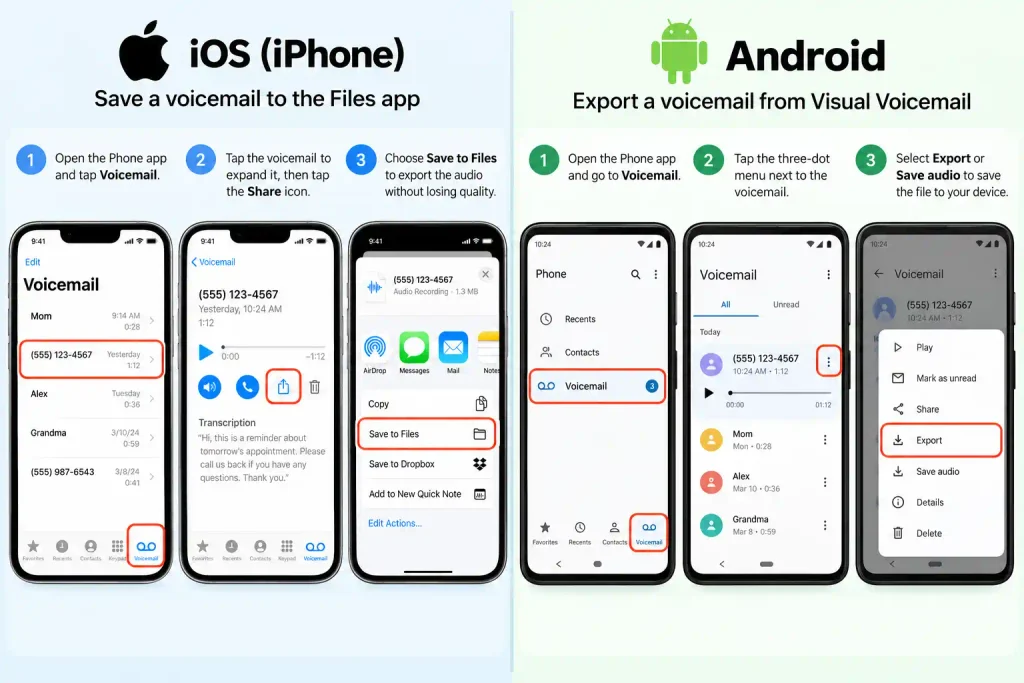
Preserving Voicemails and Voice Memos#
Hearing a late loved one’s voice is often what families miss most. Voicemails are fragile because they rely on active carrier servers.
- On iPhone (Visual Voicemail):
- Open the Phone app and tap Voicemail in the bottom right corner.
- Tap the specific message you want to preserve.
- Tap the Share icon (the square with an upward arrow).
- Select Save to Files (to store in iCloud or on device), or AirDrop / Email the audio file directly to your personal computer. The file exports as an
.m4aaudio file.
- On iPhone (Voice Memos):
- Open the Voice Memos app.
- Tap the three dots
(...)beside a recording, select Share, and save or AirDrop the raw audio file.
- On Android:
- Open your carrier’s Visual Voicemail app or the native Phone app.
- Tap the message, open the menu (three dots), and select Save, Archive, or Export.
- Locate the exported
.mp3or.amrfile in the device’s Files or Downloads folder and copy it to an external drive or cloud storage.
- The Speakerphone Fallback:
If the carrier lacks Visual Voicemail and the messages exist only on a dial-in server, place the phone on speakerphone in a quiet room and record the playback using a high-quality voice recorder app on a second phone held near the speaker. It is an imperfect recording, but it guarantees the voice survives.
Saving Photos and Videos (Beware of “Cloud Optimization”)#
Do not assume that every photo visible on the screen is physically stored on the device.
Both Apple and Google use storage-saving features (“Optimize iPhone Storage” or Google Photos Cloud Sync) that keep only low-resolution thumbnail previews on the device, downloading the full-resolution file from the cloud on demand.
- Connecting to a Computer: Connect the phone to a Mac or PC via a USB cable.
- On Mac, use the native Image Capture application to import all original-resolution photos directly to an external hard drive.
- On Windows, use File Explorer to access the DCIM storage folder.
- If Original Files Are in the Cloud: Log in directly to
iCloud.comorphotos.google.comusing a desktop browser to download the master uncompressed photo and video library rather than relying solely on the handset screen.
Exporting Text Messages and WhatsApp Chats#
Personal conversations hold years of family memories, recipes, and relationship history.
- SMS / iMessage: Apple does not offer an official native export button for an entire SMS conversation history. To capture full message histories with original dates, timestamps, and images, use third-party desktop utilities (such as iMazing or Decipher TextMessage) that create encrypted, searchable PDF or HTML exports from a connected computer backup.
- WhatsApp: Open the desired conversation, tap the contact’s name at the top, scroll down, and select Export Chat. Choose Attach Media to include photos, videos, and voice notes. Export the resulting
.zipfile via email, AirDrop, or cloud drive.
Contacts, Notes, and Calendar#
- Exporting Contacts: In the Contacts app, select all contacts and tap Export vCard (
.vcf). This file preserves phone numbers, home addresses, and emails of friends, former colleagues, and distant relatives who may need to be notified of memorial services. - Notes: Check default note applications (Apple Notes, Google Keep, Samsung Notes). People routinely store personal writing, passwords, safe combinations, and family recipes in their notes. Copy critical notes to an external document.
4. Managing Carrier Service and Two-Factor Authentication#
Once all personal media and records are extracted, address the cellular plan itself.
| Action Stage | Timeline | What to Do | Why |
|---|---|---|---|
| Active Monitoring | Months 1–3 | Keep the cellular line open on the existing plan. | Catches incoming 2FA codes for estate accounts, banking verifications, and unexpected calls. |
| Cost Reduction | Months 2–4 | Port the number to an inexpensive MVNO carrier (e.g., Tello, Mint) or Google Voice. | Reduces monthly cost to a few dollars while retaining the ability to receive SMS verification codes. |
| Account Closure | Month 6+ (After Probate) | Contact carrier bereavement support with certified death certificate to terminate line. | Once all estate assets are settled and accounts closed, release the line permanently. |
When you are ready to terminate the contract, contact the carrier’s dedicated bereavement department (AT&T, Verizon, and T-Mobile all maintain specialized teams). Under standard bereavement policies, carriers waive early termination fees upon receipt of a certified copy of the death certificate.
5. Official Posthumous Account Pathways#
If the smartphone is locked and the passcode is completely unknown, you cannot simply bypass the lock screen. You must use official platform legacy frameworks:
Locked Apple Device  ──► Apple Digital Legacy Portal ──► Submit Access Key + Death Certificate
Locked Google Device ──► Inactive Account Manager   ──► Automated Transfer to Designated Contact
Apple: Legacy Contact vs. Court Order#
- If a Legacy Contact was set up: The designated contact visits Apple’s Digital Legacy portal (
digital-legacy.apple.com), enters the generated Access Key, and uploads a copy of the death certificate. Upon review, Apple grants a temporary Legacy Apple ID to download photos, messages, notes, and device backups. Note: This grants access to account data; it does not decrypt the device passcode. - If no Legacy Contact was named: Apple requires a formal court order explicitly naming the petitioner as the legal executor or beneficiary of the digital assets. The court order must cite specific legal language regarding the decedent’s account.
Google: Inactive Account Manager#
- If the deceased configured Inactive Account Manager, Google will automatically email the designated contact after a specified period of inactivity (typically 3 to 18 months), providing a download link for Google Photos, Gmail, and Google Drive files.
- If unconfigured, the executor must submit a posthumous request through Google’s Accounts Help Center, providing a death certificate, government ID, and relevant legal authority.
6. Beyond the Hard Drive: Preserving the Whole Person#
After weeks of careful work, families usually end up with a USB drive or a desktop folder holding 4,000 unorganized files: loose camera roll shots, a handful of .m4a voicemails, scattered screenshots, and message transcripts.
This leads to the next, often unexpected problem: digital decay and isolation.
When a person’s digital remains sit on a private hard drive:
- Siblings, children, and extended family members cannot hear the voice notes or see the photos unless someone manually sends them files.
- Decades from now, descendants will open a folder of filenames like
IMG_9042.jpgwithout knowing who the people were, where the photo was taken, or what made that moment special. - Voicemails saved on laptops often sit unplayed because there is no emotional home for them.
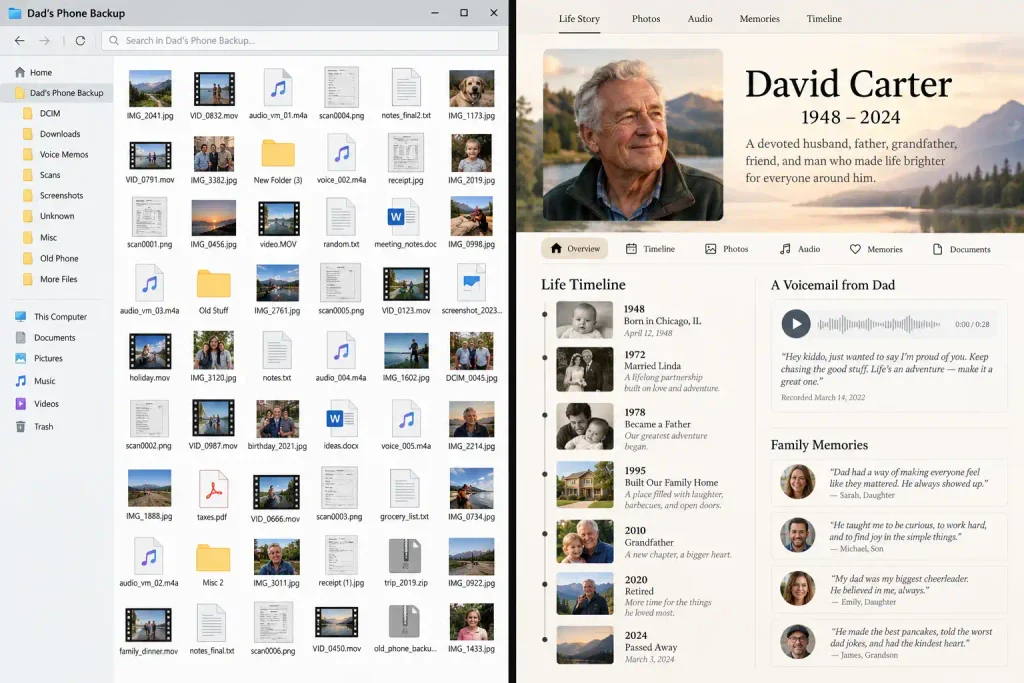
A phone holds the raw material of a life, but an archive preserves the context. This is the exact problem Theirs was built to solve.
Theirs is not an ephemeral online obituary that runs advertisements against memorial visitors; it is a permanent, collaborative family archive. Instead of letting a late parent’s voicemails and candid photographs gather digital dust on an external drive, families use Theirs (e.g., theirs.page/first-last) to bring those elements together into an ongoing, unhurried celebration of a life:
- Voice Preservation: Upload authentic voicemails and voice notes directly into the memorial, giving relatives an embedded player to hear how their loved one actually sounded.
- Original-Quality Media: Photos and video clips are preserved in their original resolution rather than degraded through compression.
- Chronological Milestones: Connect photos and stories to an interactive life timeline spanning childhood, military service, career chapters, and family life.
- Collaborative Contributions: Family and friends can add their own stories, tributes, and photos from their phones without creating accounts, all fed into a private moderation queue managed by the family caretaker.
- Long-Term Stewardship: Because Theirs operates on a one-time fee model ($179 for the Complete Family Archive, with a permanent free tier available) rather than recurring monthly subscriptions, families never face paywalls to access their memories. You can appoint multiple caretakers and designate a successor caretaker, ensuring that the digital legacy you extracted from that smartphone survives across generations.
7. What to Do With the Physical Phone#
Once all media, messages, voicemails, and contacts are fully verified in your backups and uploaded to your family archive, you must decide what to do with the physical hardware.
[Is All Data Backed Up & Verified?]
               │
       Yes ────┴──── No ──► [Return to Section 3: Do Not Erase]
       │
       ├─► Option A: Keep as an Offline Archive
       │     └─► Charge to ~50%, power down, store in climate-controlled safe with passcode.
       │
       ├─► Option B: Pass Down, Donate, or Trade In
       │     ├─► 1. Sign out of Apple Account / Google Account (Removes Activation Lock / FRP).
       │     ├─► 2. Remove physical SIM card.
       │     └─► 3. Perform encrypted factory reset.
       │
       └─► Option C: Return Employer-Owned Phone
             └─► Verify personal data is cleared, then return handset to employer HR/IT.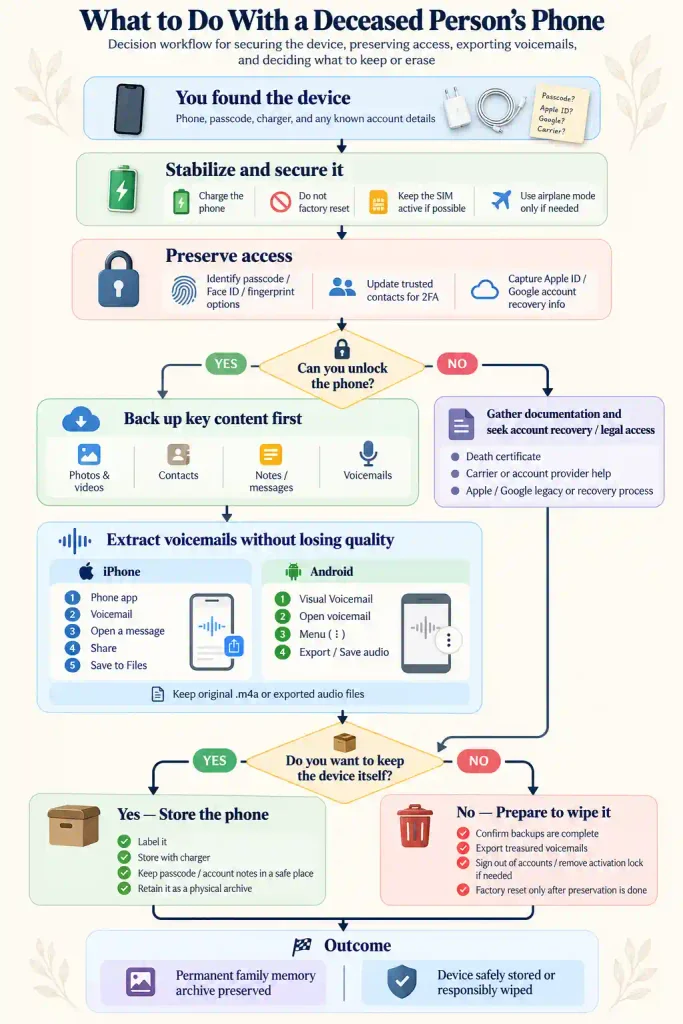
Option A: Keep the Phone as an Offline Archive#
If you wish to keep the physical device as a sentimental keepsake:
- Turn on Airplane Mode and disable Wi-Fi/Bluetooth to prevent accidental remote commands.
- Charge the battery to approximately 50% (lithium-ion batteries degrade quickly if stored at 0% or 100%).
- Power the device completely off.
- Store it in a cool, dry, climate-controlled space (never in an attic or basement).
- Write the passcode clearly on an index card and store it with the estate’s permanent legal papers.
Option B: Repurpose, Sell, or Donate#
If you intend to gift the phone to a family member, trade it in, or donate it:
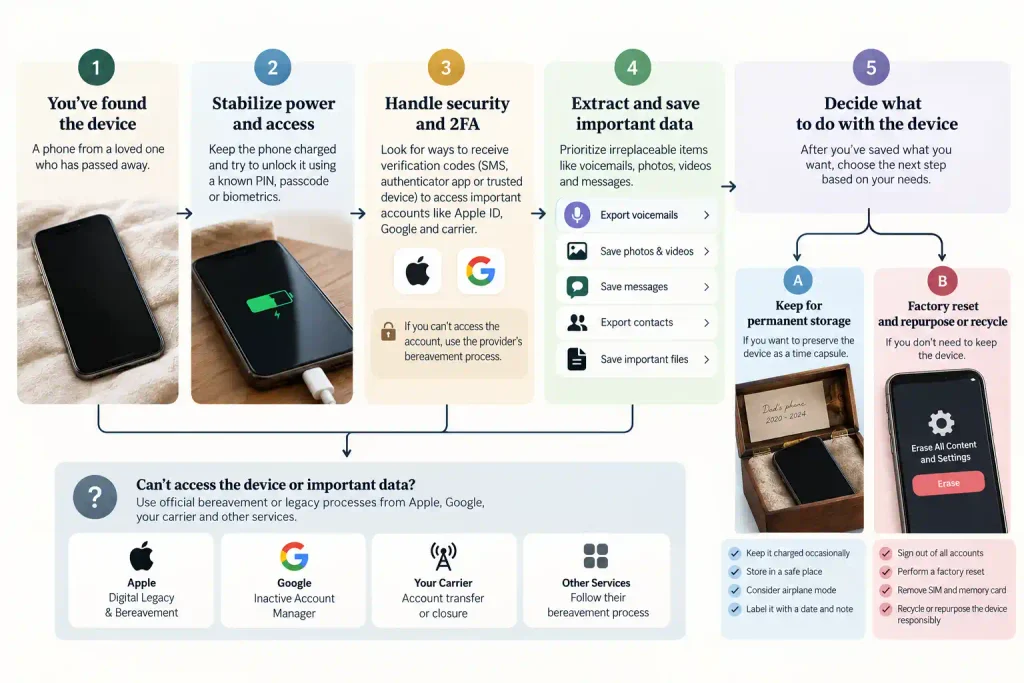
- Remove Activation Lock / Factory Reset Protection: This is the most critical step. On iOS, go to Settings > [Name] > Sign Out of the Apple Account. On Android, go to Settings > Accounts and remove the Google Account. If you factory reset the device without signing out first, the phone will remain permanently locked to the deceased person’s credentials upon reboot.
- Remove the SIM Card: Eject the physical SIM card or contact the carrier to deactivate the eSIM profile.
- Execute an Encrypted Factory Reset:
- iPhone: Go to Settings > General > Transfer or Reset iPhone > Erase All Content and Settings.
- Android: Go to Settings > System > Reset options > Erase all data (factory reset).
Once erased, modern hardware encryption renders previous data mathematically unrecoverable, allowing the phone to be safely passed forward.
